



360° panoramas in plot, house and apartment cards
A buyer looks around the plot, the house or the window view in 360° panoramas right in the card, and on a phone the picture turns with the phone.
What’s new
360° panoramas can be added to a plot, a house design, a unit and a floor plan. An apartment also gets a "360° window view". On the website, panoramas come first in the card’s gallery, and on a phone the picture turns as the phone turns. Cameras can be linked to each other, and panoramas can be assigned to many lots in one action. Panoramas can also be shown on a touch table in the sales office for a more impressive demo.
How it works
- 360° panorama uploaded to a plot, house or apartment
- The buyer opens the card on the website
- Views the panorama on a computer or a phone — by turning the screen
- In the sales office — on a touch table, for an impressive demo
What it looks like
-
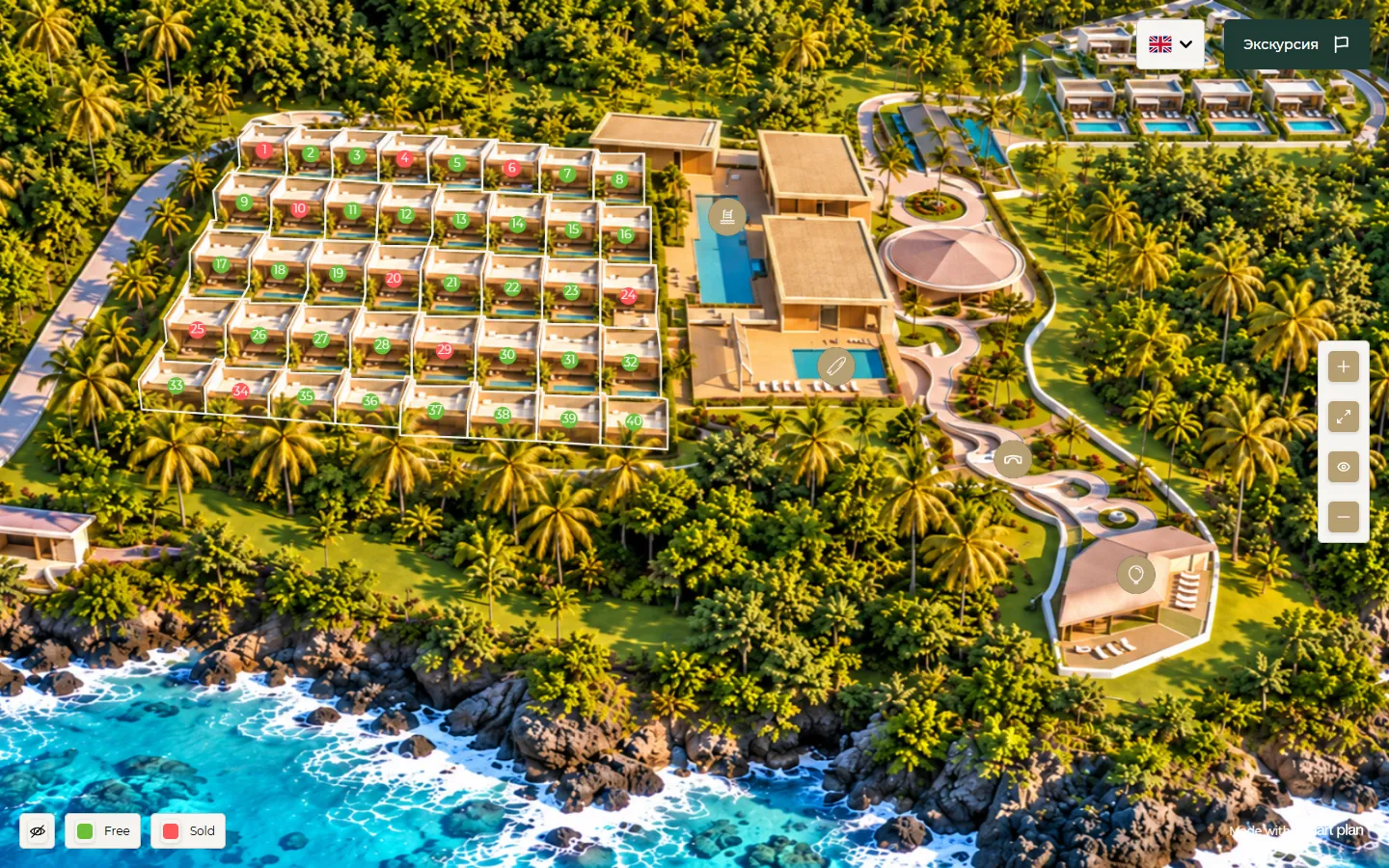
Master plan with panorama markers: pool, wedding hall, surf wave -
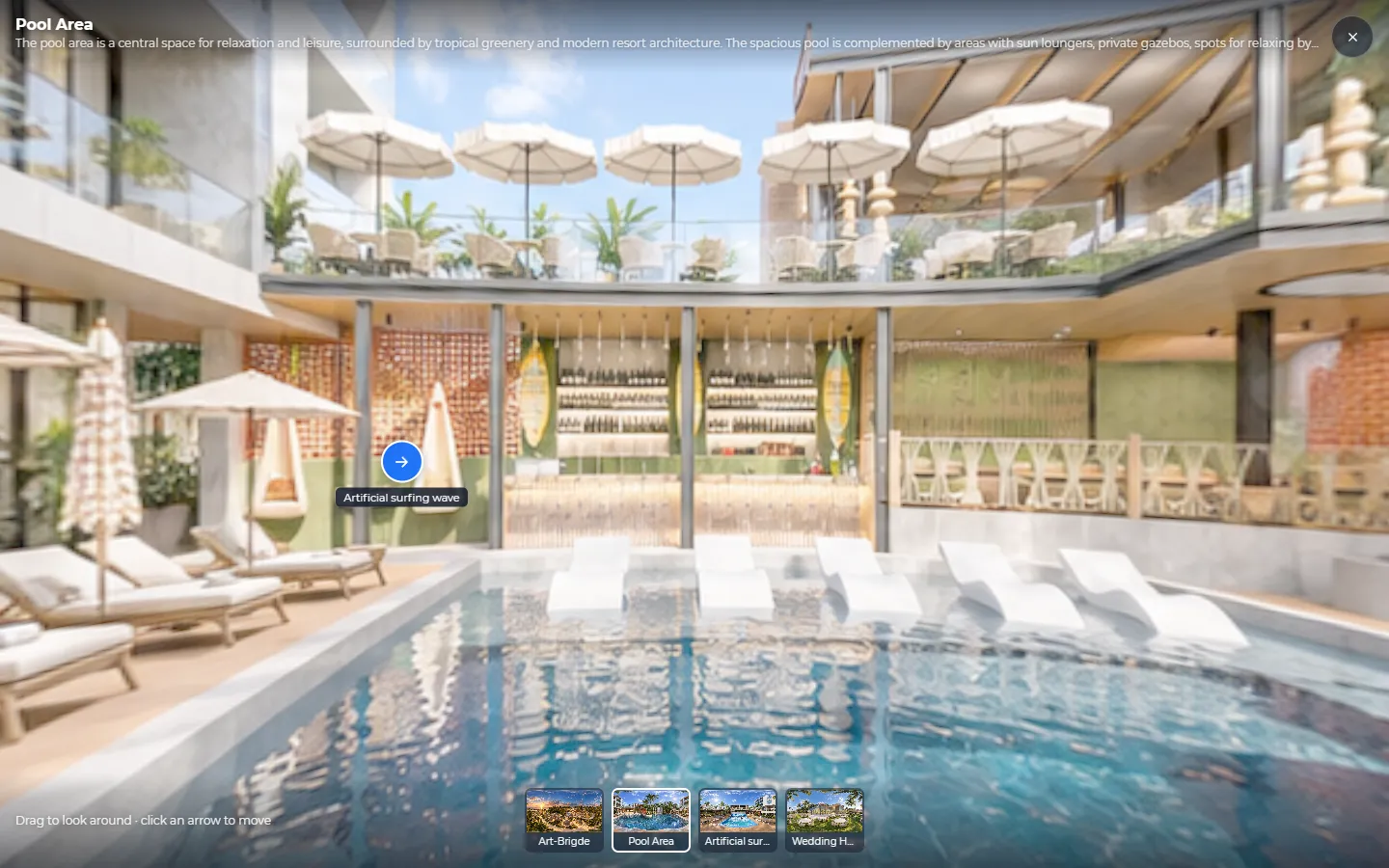
Pool area panorama with links to other cameras -
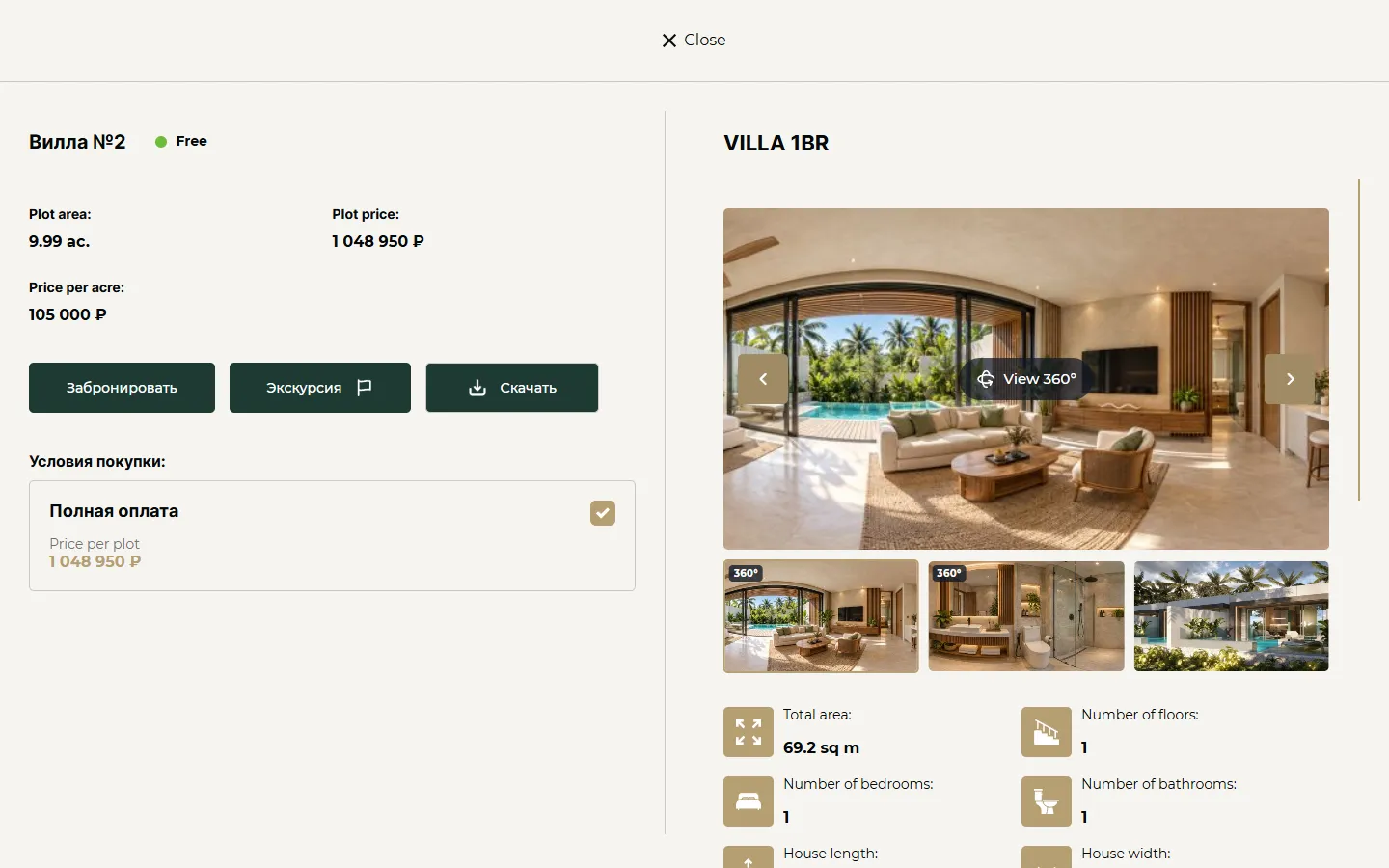
Villa card: 360° panoramas are the first gallery slides
How to use it
- 1
Open a property → "Plots" («Участки») or "Units" («Помещения») and open the lot.
- 2
In the "360° panoramas" block («Панорамы 360°»), add a camera and upload a photo.
- 3
To assign panoramas to many lots at once, select them in the table and choose "360° panoramas" («Панорамы 360°»).
Setup help
We’ll help you set up and get the most out of the update
What we’ll do
- Set it up for your project
- Show your team how to use it
- Answer your questions