


Real estate listing feeds: how a developer can keep portal listings up to date automatically
A listing feed is a file at a fixed link that property portals read on a schedule. Build it from the same unit database as your price list, and listings stay current without manual edits.
Short answer: one source of data, one link per portal
A familiar picture in a project that sells through portals. A manager posts listings by hand, prices change, units get reserved, and a few weeks later part of the listings no longer match the price list. A buyer calls about a plot that sold last Monday, and the call starts with an apology.
A feed removes the manual step: the portal takes the list of units from a link and updates the listings itself. Below: how feeds work, how portals accept them, what to put in, where they break and how to set one up — with or without special software.
- What a listing feed is and how a portal reads it
- Feed or API: how portals accept listings
- What to include for plots and apartments
- Where feeds break
- How to set up a feed yourself and which tool to use
For owners, commercial directors and marketing leads of developers who sell plots or apartments through property portals.
What a listing feed is and how a portal reads it
A feed is a structured file, usually XML, with one record per unit: ID, type, location, size, price, photos, description and contact. It sits at a public link. The portal downloads it on its own schedule, compares it with what is already published and adds, changes or removes listings.
The main idea: a feed is not a one-off upload. Every time the portal reads the link, it sees the current state of your stock. If a unit has left the feed, its listing comes down. So the feed is exactly as accurate as the data it is built from — no more.
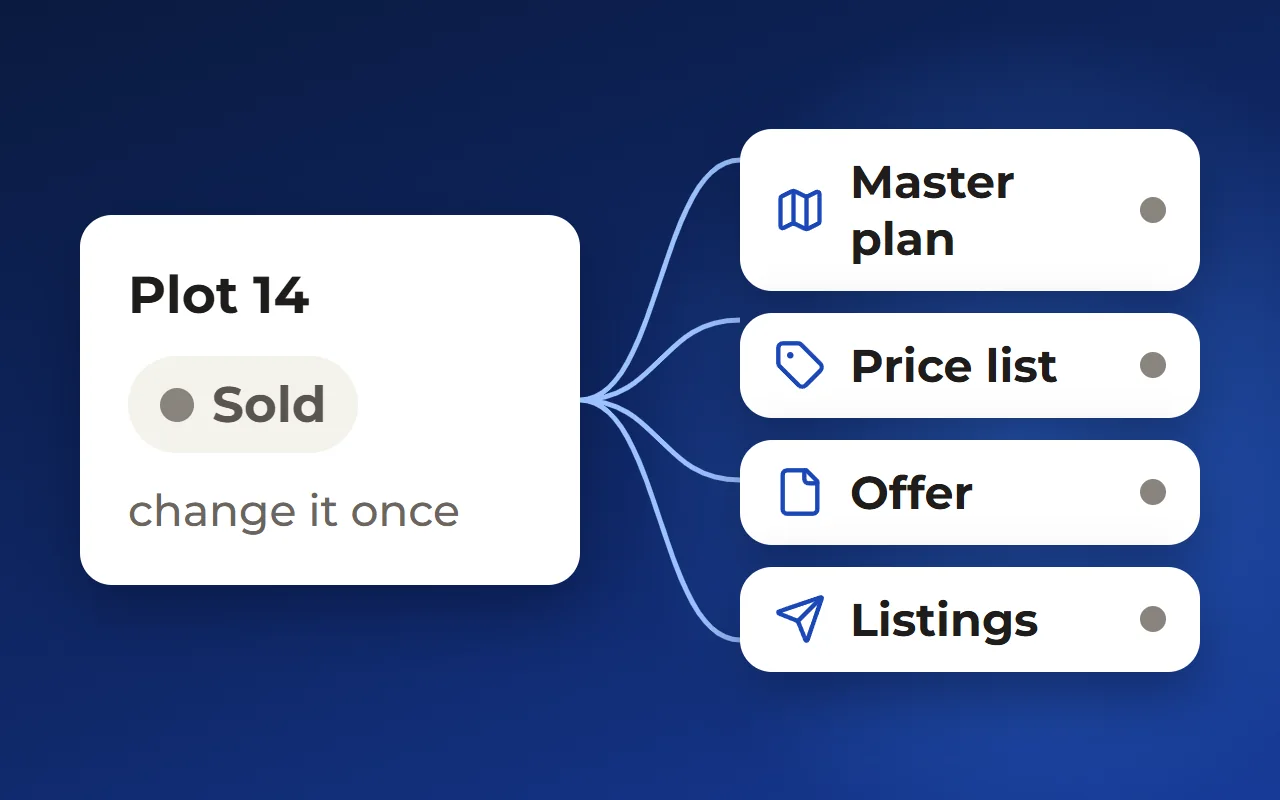
Each record needs a permanent unique ID. That is how the portal knows that plot 14 today is the same listing as plot 14 yesterday. Change the ID and the portal sees a new listing, while the old one stays online as a duplicate.
- Units, prices and statuses in one database
- The feed is published at a fixed link
- The portal reads the link on its schedule
- Listings are added, updated or removed
Feed or API: how portals accept listings
Portals usually take listings in bulk from professionals in one of two ways. The first is a feed at a public link that the portal reads and syncs. Bayut and dubizzle in the UAE, for example, work this way with agencies whose listings come from their own CRM.
The second is an API: your software sends every change to the portal directly. Property Finder runs a developer network for CRMs that connect through its APIs, and OLX offers a partner API for its European marketplaces.
Some markets also have a shared format. In Spain many agency programs and portals exchange data in Kyero XML. Elsewhere each portal has its own schema and list of required fields, and the documentation is often sent to the account holder rather than published.
In practice, before choosing a tool, ask each portal you need three questions: do you take a feed or only an API, in which format, and which fields are required.
Sources: Bayut Help Center — listings posted through your own CRM · Property Finder Developer Network · OLX Group Developer Portal — FAQ · WP-ImmoMakler — Kyero XML (idealista, Inmobalia)
What to include for plots and apartments
Required fields differ by portal, but the core is the same. A listing that misses a required field is usually rejected or ranked lower, so check the data before the first export.
- Plot: number, size, location or coordinates, permitted use, price, photos
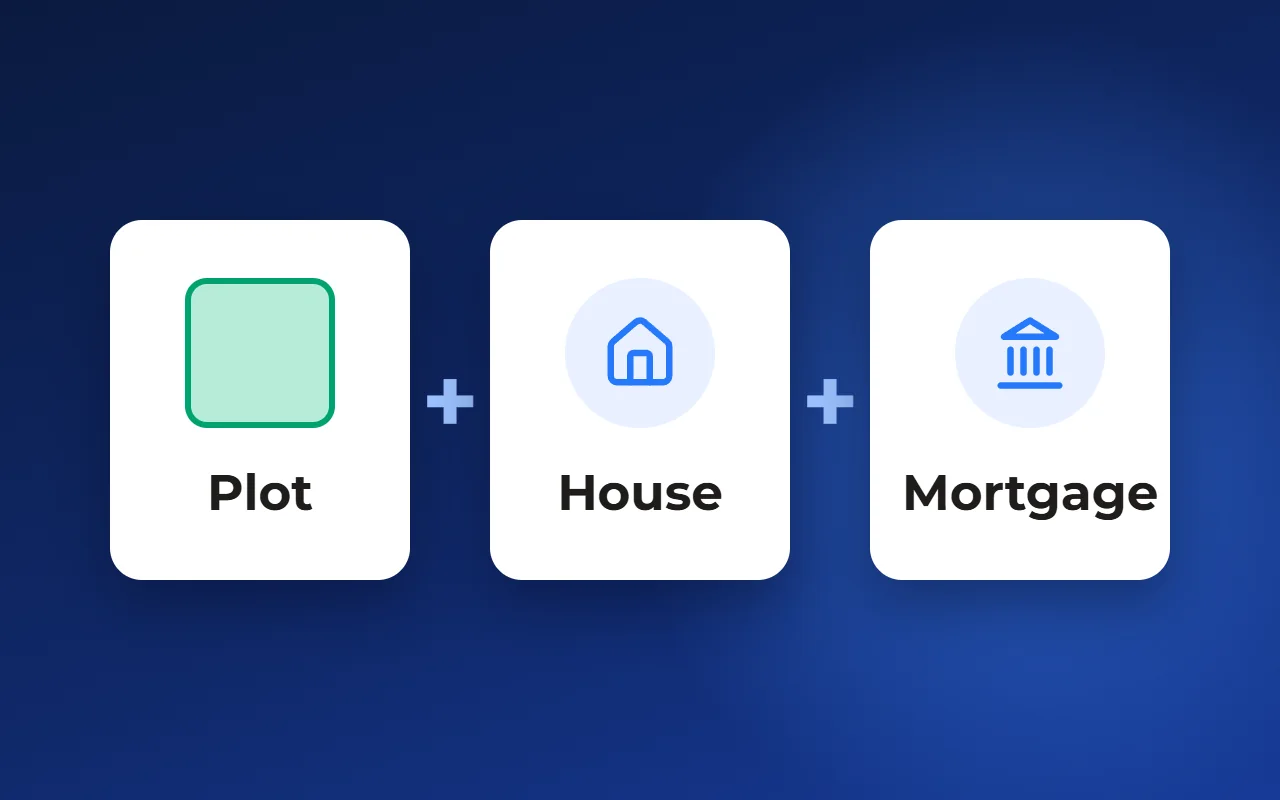
- House with a plot: house and plot size, material, floor plan, whether the price covers both
- Apartment: building, floor, rooms, size, floor plan, completion date
- Every unit: a permanent ID, a contact for enquiries and any permit number your market requires
Local rules: what the portal will ask for
The last point on that list is local, and it is easy to miss. In Dubai a property advert needs a Trakheesi permit from the Dubai Land Department, and Bayut publishes a listing only with the permit number. Other markets have their own rules for advertising property, especially off-plan.
Find out what applies in your market before you build the feed. Adding one field to the data once is easier than fixing hundreds of rejected listings later.
Where feeds break
Most problems come not from the format but from data that does not match reality. These come up most often:
- Sold units stay listed: the feed is built from a separate file, not from where reservations are recorded
- Prices differ from the price list: changed in one place and forgotten in another
- Duplicates: the same unit is published from two sources, or its ID changed
- Edits in the portal account: the next feed update overwrites them
- Empty or broken fields: missing photos, an empty promotion line, a wrong unit type
- An unreachable link: the portal cannot read the feed, and listings freeze or disappear
Posting by hand
- Every listing is edited by hand on every portal
- A sold plot stays online until someone notices
- Prices differ between portals and the price list
Feed from one database
- A change in the database reaches the portal on its next read
- What is not for sale is not in the feed
- The portal shows the price from the price list
How to set up a feed yourself
You can do it without special software, but you need discipline and one person in charge.
- Pick one source of data — the table where reservations and sales are recorded — and build the feed only from it
- Give every unit a permanent ID and never reuse it
- Get the format and required fields from each portal and map your columns to them
- Publish the feed at a stable link and give the link to the portal once
- Do not edit listings in portal accounts: change the data at the source
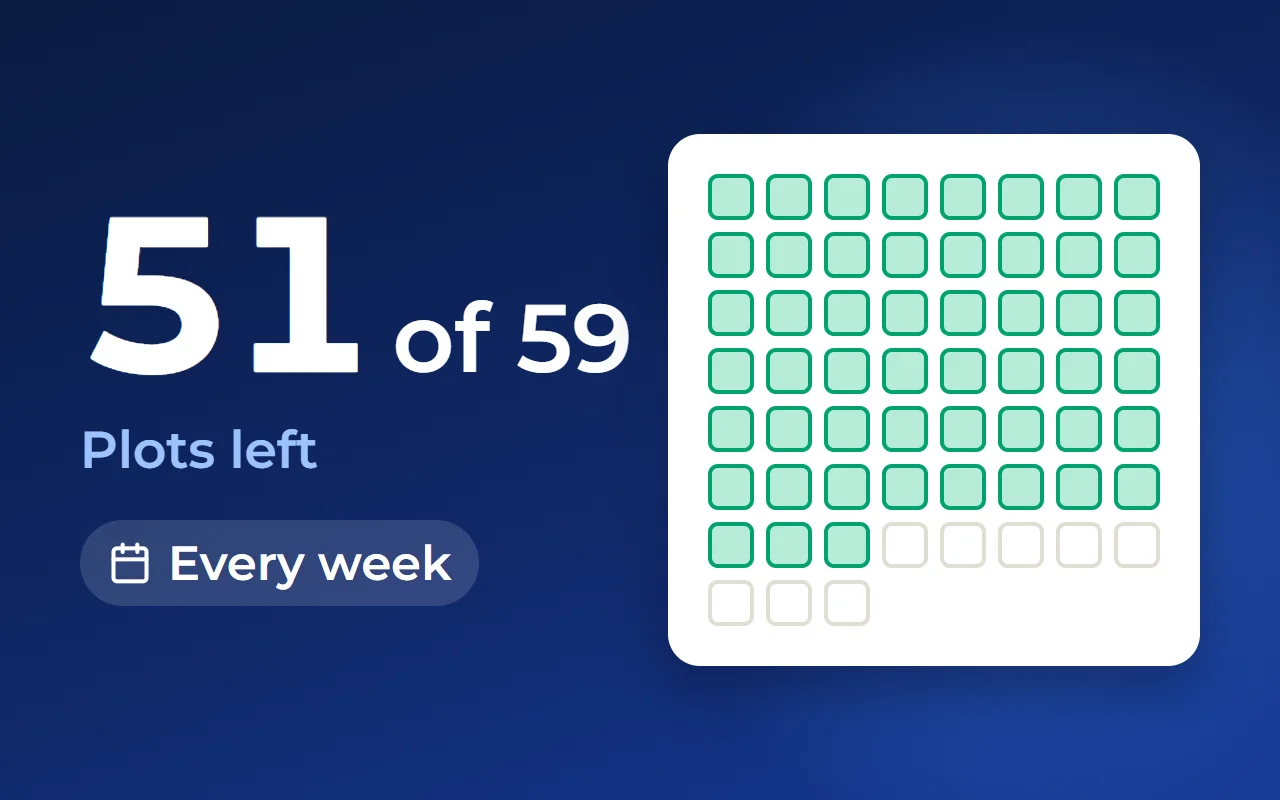
- Once a week, compare the number of live listings with the number of available units
- Read the portal’s import report and fix the cause of every rejected listing in the data
Which tool to use
Posting by hand in portal accounts. Free and fine for a handful of units. Downsides: every change is made several times, and sold units stay online until someone remembers them.
A spreadsheet turned into a feed by a script or plugin. Cheap and workable for one small project and one portal. Downsides: the spreadsheet becomes a second copy of your stock, and when the script breaks nobody notices at once.
A CRM or sales platform with portal integrations. The feed is built from the database the sales team works in, so statuses and prices match. Downsides: it costs money, and integrations depend on the market — check that your portals are supported before you buy. Smart plan is one of these systems; what it can and cannot do today is below.
How listing feeds work in Smart plan
In Smart plan a project is set up once: phases, plots or apartments with prices and statuses. The master plan on your website, the unit chart and the CRM all work from this data, and the feed for a portal is built from it too. It sits at a link that the portal reads on its own schedule, and the file is assembled from current data on every read: price, size, coordinates, photos and floor plans. Listing titles and descriptions are filled from templates.
You can publish part of a project — selected phases or unit types. A separate price for a portal (a markup, a discount or a promotion), the choice of which statuses to export and taking a listing down when a unit’s status changes are enabled on request.
An honest limit: ready-made feeds today exist only for portals in Russia — Yandex Realty, Cian, Avito, Domclick, M2 and YUgroup. OLX, 2GIS, VK and Domoplaner are in the queue, and we do not present them as ready. Feeds cover apartments and plots. If your portals are elsewhere, Smart plan does not publish to them yet; the single unit database still keeps your website, price list and sales team in sync.
What the export looks like on a real project — on the listing feeds page, linked below under “Related solutions”.
- 1Unit ID in the listing
- 2Status of the unit
Where the export lives in Smart plan
- Step 1
Export to portals
Modules → “Export to portals”: a feed per project. Ready-made feeds today are for portals in Russia.
- Step 2
Track the leads
Analytics → “Funnel” tab: the buyer path and lead sources.
Questions and answers
What is a real estate listing feed?
A file, usually XML, with one record per unit — ID, location, size, price, photos, status — published at a fixed link. Property portals read the link on a schedule and update the listings to match.
Feed or API — which is better?
It is the portal’s choice more than yours: some take a feed at a link, others only an API. A feed is simpler to set up and check — open the link and you see what the portal sees. An API passes changes faster but needs an integration on your side.
How fast does a sold unit disappear from a portal?
On the portal’s next read of the feed. Each portal sets its own schedule, so ask how often it reads the link and plan for a delay between the sale and the listing coming down.
Why did the portal reject my listings?
Most often because of empty required fields, a wrong unit type or category, broken photo links or a missing permit number. Read the portal’s import report and fix the data at the source, not in the portal account.
Can one feed serve several portals?
Rarely as it is: formats and required fields differ. The usual setup is one database and a separate feed for each portal, built from the same data.