


How to choose a CRM for a real estate developer: criteria and comparison
You are choosing a CRM for a sales team. These screens show what to check in the demo so you do not get it wrong.
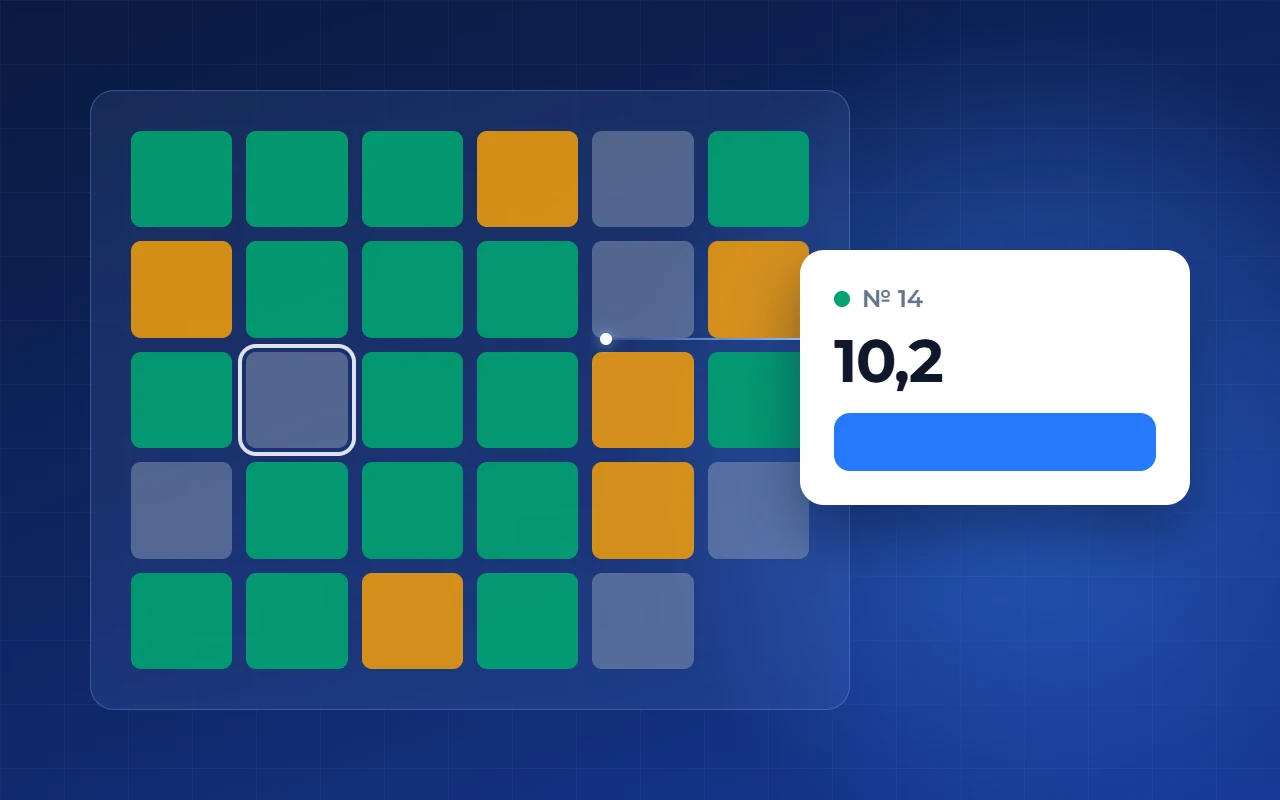
Are units and deals in one database?
A unit cannot be sold twice. Each unit has its own status, and a reservation must change it by itself — on the website and portals.
- 1Unit status, not a deal field
- 2Reservations counted automatically
What does the lead card show?
Everything about the buyer on one screen: stages, unit selection, reservations, contracts, payments. No jumping between systems.
- 1Stages all the way to mortgage
- 2Reservations, contracts, payments
- 3Pick units from the database
Who registers agency buyers?
Agencies work in a separate channel: offers, partners, commissions. The system, not a chat thread, settles “whose buyer is this”.
- 1Who brought the buyer
- 2Payouts are calculated here
- 3Terms for agencies
Installments and mortgage in the system?
Payment methods are set per property and change the price: discount or markup. Ask about the payment schedule and arrears.
- 1What the price is based on
- 2Installment as a payment method
Portals and price: what to ask?
Portal export is switched on per property: here ₽3,000 a month. Get the CRM price (₽4,490–14,990 a month) in writing for a year ahead.
- 1Export price per property
- 2Connected property by property
Five systems compared
Checked against vendor websites and help pages on 12 October 2026. A missing line does not mean a missing feature — confirm in the demo.
- Smart plan: unit chart, master plan, reservations, offers, price list — one database
- Profitbase: unit chart, online reservation, agent portal
- Macro: unit chart, reservations, finance, 200+ integrations
- amoCRM: general-purpose, units via partner apps
- Bitrix24: general-purpose, developer apps from the catalog
A one-hour demo
Send the vendor 10–20 of your own units and run the path on them. Note the time per step and how often a specialist was called.
How to follow a unit’s path in Smart plan
- Step 1
Receive the lead
CRM → “Leads”. A new lead sits in the first column of the board and moves down the funnel.
- Step 2
Set a meeting
CRM → “Tasks”, Calendar view. Put a call or a showing on the right day.
- Step 3
Place a reservation
CRM → “Reservations”. The reservation card with its amount sits in a column by term.
- Step 4
Draw up the contract
CRM → “Settings” → “Contract templates”. A manager creates a contract from the deal using a template.
- Step 5
Review the results
CRM → “Dashboard”: team indicators, plan vs actual, funnel.